Showing posts with label product reviews. Show all posts

Opera 10 - A first look at this fabulous web browser

Opera 10 has been released. This release of Opera sports a number of alluring, new features, many of them not seen in any of its contenders. The enhancements to look out for in Opera 10 are as follows.

Opera Turbo

Opera 10 Turbo
Opera Turbo when enabled will boost your browsing speed by a significant factor. This increase in speed is more pronounced when you are browsing on a slow Internet connection like a dial-up. Opera achieves this by acting as a web proxy to your client. The servers at Opera will retrieve your web page, compress it and then send it to your browser thus reducing the size of data and consequently boosting speed. Among other means, the compression is achieved by image down-sampling therefore some level of distortion in graphics may occur.

Opera 10 is much faster

Opera 10 is upto 40% faster than its predecessor. Check out the web specifications supported in Opera presto 2.2 - the web engine powering Opera. Though this benchmark puts it a little (6 percent) behind Google Chrome 2.0.172.

Improved speed dial settings

Opera 10 Speed dial

Now you can configure speed dial to show upto 25 of your frequently visited websites. And you can provide a custom background too.

Visual Tabs

Innovative visual tabs display web pages in thumbnails. To see the visual tabs in Opera 10, just stretch the tab border south and the tabs will be magically transformed into ones with visual appeal.

Visual tabs

Web mail integration

Opera now allows you to choose your preferred web mail such as Gmail, Yahoo or any of the scores of web mail services as your default mail client in Opera. This means that when you click on a email link, Opera opens your preferred web mail instead of the default email software on your machine. This is true for all your RSS feeds as well. If you use Google reader to subscribe to websites, then you can configure Opera to import all your RSS feeds into Google reader by default.

Rich text support for Opera mail client

Opera 10 has support for rich text editing in mail client. You can use bullets, change the font properties of characters as well as insert images inline.

These are the major, albeit a subset of new features in Opera 10.

Opera is available for multiple platforms including Windows, Linux, Mac OS X, FreeBSD and Solaris; As well as some lesser known operating systems such as QNX, OS/2 and BeOS. And it comes in more than 43 different languages. Opera has always strived for full standards compliance. Not surprisingly, Opera 10 boasts of a 100/100 score in the Acid 3 test.

Opera 10 passes Acid 3 test

It is remarkable really that Opera, a company which has just one product - namely a web browser - has been so successful in making money. It's annual revenue stands at a significant $79.5 million dollars. [Source : Business Week].

Opera User Interface

The following image provides an overview of Opera web browser's user interface.
Opera User Interface
Credits: Opera.com

How to install Opera 10 in Ubuntu

If you are using Debian or one of its derivatives like Ubuntu, then there is a repository for Opera from which you can download Opera 10 using apt-get or dpkg. Visit deb.opera.com for details. Of course, you can also download Opera 10 for your Linux distribution directly from its website.

Opera 10 for Linux is built using Qt3. But a Qt4 port is also available for download at the following location.

Opera 10 Reviewer's guide

Finally, here is a very well made video showcasing all the important features built in Opera 10.


Read an earlier review of Opera 9.0

HP 2133 sub-notebook powered by Linux

When Asus rolled out the eeePC, it received rave reviews. Now it is the turn of HP to jump into the sub-notebook market. HP has unveiled a laptop with 8.9" high resolution WXGA display, 92% full size QWERTY keyboard and touch pad. It comes with an optional solid state drive, weighs just 1.19 KG and is just 1.05 inches thick.


HP 2133 Sub Notebook Specification
  • VIA C7-M ULV processor
  • 512 - 1 GB 667 MHz DDR2 SDRAM
  • 120 - 160 GB SATA hard drive
  • USB 2.0 ports - 2 Nos
  • VGA External monitor port
  • Audio in/ Microphone Jack
  • Audio out/ Headphone Jack
  • Express Card 54 Slot
  • SD Card slot
  • RJ-45 network jack
  • 1 AC Power connector
  • Kensington Lock slot
  • VGA webcam (Optional)
  • Stereo speakers and
  • Stereo microphones and
  • is wireless enabled
It's all aluminium case makes it sleek, sturdy and lightweight. HP has targeted this sub-notebook at the education segment namely the students and it will compete directly with other sub-notebooks such as Asus eeePC. The HP 2133's price starts at US $499.


A video of HP 2133 Sub-Notebook - Courtesy: Notebook.com


But the one thing which excites me the most is that HP sells this sub-notebook with SuSE Linux Enterprise Desktop 10 as an option.

Xavier has written an indepth review of this eye catching notebook with plenty of pictures to supplement his narration.

An in depth pictorial look at OLPC hardware

The One Laptop Per Child project is unique in many respects the most prominent of which is its philanthropic goal of providing a cost effective medium to further the education of poor children in third world countries.

But did you know that on the technology front, the OLPC laptop named XO-1 is the front runner to a number of innovations ? Consider these facts ... The XO-1 has been designed from the grounds up with the goals of survivability, serviceability, and robustness in mind. The mother board is located behind the LCD screen instead of below the keyboard as seen in traditional laptops. The LCD is a dual-mode display, both a full-color, transmissive DVD mode, and a second display option that is black and white reflective and sunlight-readable at 3x the resolution. It is said to be one of the first devices to use the Li-Fe-P battery, which is considered safer than normal Lithium ions.

I came across this in depth article which details each and every part of the OLPC right down to the chipsets used, accompanied by a dozen or so high resolution photos of the parts. A very informative read indeed.

Mount an Ext2 or Ext3 partition in Windows

There are different ways of sharing files between GNU/Linux and Windows. Mostly we make use of the services of a FAT32 (or FAT16) partition which can be read and written to by both Linux and Windows. The disadvantage of using a FAT partition for sharing files between Windows and GNU/Linux is that you are forced to reserve a part of disk space solely for sharing files. But this is just one of the number of file sharing methods available for people who wish to dual boot between the two OSes.

Another method which comes to my mind is to use the new stable release of ntfs-3g module which allows you to mount an NTFS partition as read-write in GNU/Linux.

But the method which has caught my fancy the most is a project which allows me to mount a ext2/ext3 GNU/Linux partition in Windows and assign it a drive letter similar to C:, D: and so on. The project in question is the Ext2fs installable file system. This project is the brain child of Stephan Schreiber. Once this driver is installed on Windows (98/2000/XP), you can easily mount a Linux partition on your computer into Windows and assign a drive letter to it. Once that is done, the files in the Linux partition can be browsed, read and written to.

EXT2 Installable File SystemFig: Installing the Ext2 IFS driver

EXT2 Installable File SystemFig: Another installation screen shot

The first step is to download the setup program from the ext2fs site and install the ext2 driver for Windows. Once the driver is installed, you will find an icon named "IFS Drives" in the Control Panel in Windows (See figure below). Double clicking on the icon will open a dialog box which will show all the partitions on your machine including the Linux partitions. Using the drop down box on the corresponding partition, you can assign drive letters to them.

Windows XP Control PanelFig: Access the IFS GUI from the control panel in Windows

EXT2 Installable File SystemFig: Assign drive letters to the ext2/ext3 partitions from the Ext2 IFS GUI.

Viola! now you can access the files on the corresponding Linux partition from the Windows file explorer by clicking on the drive letter you assigned to that partition. What is more, if you have a floppy which is formatted using the ext2 file system, then it could also be accessed in Windows without any problem.

Advantages of Ext2 IFS
  • Read and write access to files residing in Linux ext2/3 file system from within Windows.
  • Read and write access to floppies with ext2 file system.
  • Seamless integration and use of ext2/3 file system in Windows to the extent that all applications have access to it.
Disadvantages of Ext2 IFS
  • This program has a drawback in that it mounts only Ext2/Ext3 partitions. So if you have installed Linux on any other file system such as reiserfs, JFS or XFS then you are out of luck.
  • Does not have support for Linux logical volumes. So if you use LVM in Linux, this software will be useless even if the underlying file system is ext2 or ext3.
  • Current version of Ext2 IFS does not maintain access rights. So mounting an ext2 partition in Windows will give full access to the files on it to all the users.
While there are some limitations to this software as noted above, one convenience I see in using this method of sharing files between Windows and Linux is that once you have finished, you can also hide the corresponding Linux partition by re-opening the "IFS Drives" GUI front-end from the control panel and then removing the drive letter you assigned to the partition previously.

If by any chance you do not like any of the methods explained here, you can transfer files between Windows and Linux using a floppy or a USB key too ;-).

Review: Opera Ver 9.0 - A trailblazer in the web browsing arena

I have always been fascinated by the web browser called Opera that is developed by a Norwegian firm going by the same name. I remember using this browser even a couple of years back when IE was still the default web browser in a PC and its alternative Mozilla/Netscape had all the sleekness of a sloth. At that time, Opera was an ad-supported software. But sometime in September last year, Opera decided to remove the ads and make their web browser for the desktop completely free.

The current version of this web browser is ver 9.0 which they tout as the fastest web browser in the world. Opera has released their web browser for multiple platforms including Linux. What I find unique about Opera is its very small size even after bundling all the paraphernalia such as an email client, news and rss readers, IRC chat client and what not. Just for the sake of comparison, I opened Firefox (ver 1.5) web browser and opera (ver 9.0) each from cold start and I found that Opera consumes much less memory than Firefox even with all these extra features built in.

Fig: Opera web browser with all the toolbars visible

Once I started using the latest version of Opera, I discovered a number of useful features which made my browsing experience that much richer.

For one, Opera has an inbuilt Notes feature similar to the KJots program in KDE which allows one to jot down notes in a book format. There is even an option to email the notes to others without ever leaving Opera via its integrated email client. Suppose I come across a useful article which I would like to read later. In Opera, I need not save the whole web-page rather, I can just select the relevant section and right-click the mouse and select 'Copy to Note' option or press the '[Ctrl]+[Shift]+C' key combination and it will be automatically filed in the Note app. And the interesting fact is that the notes can be kept in conjunction with the websites that need to be referred later. I found another use for the notes in that I could store data in notes which can then be used for simple completion of web forms.

Another feature I found really useful was the ability to view any webpage using the stylesheet of ones choice. In fact, there are a total of 8 inbuilt styles that are bundled with opera with option to create ones own styles and apply to the website one is visiting. I find this feature in a web browser god send especially when I visit websites which are created with a poor eye to color and contrast. But that is not all, Opera makes it possible for one to view just the links and images in a website. This is achieved by navigating to View -> Styles and clicking "Show images and links only". Or if I want to see the structural elements like the CSS classes and ids used in a webpage, I could select the next entry below it. I believe some of these functions are possible in Firefox too with the aid of extensions. But it is nice to see these features built in by default in a web browser.

Opera Widgets
But the one feature which pleased me the most in ver 9.0 of Opera are the Widgets which are miniature applications that run alongside Opera and live on the Desktop. Opera has made available a great collection of widgets which have a variety of uses. Some of the more prominent ones which caught my fancy are as follows :
  • Clock widget - Displays an analog clock. And one can change the style of the clock by just clicking on it.
  • News widgets - Shows the most recent stories from news sites such as BBC, Slashdot, Digg and so on. Perhaps we can look forward to seeing similar widgets of other prominent news sites too in the future.
  • Calculator widget - Provides a cute functional calculator.
  • Wikipedia widget - Search the wikipedia encyclopedia site from this widget.
Fig: Circular tetris game widget

Fig: Wikipedia widget

After seeing the Opera widgets in action on my Linux desktop, I couldn't resist comparing them with the Dashboard widgets in OSX.

Opera is very strong on the usability front
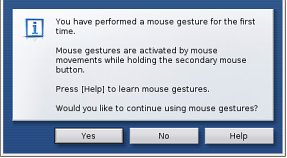
One look at the sheer collection of keyboard shortcuts is enough to give an idea of what I am talking about. I was able to do all the tasks in Opera without taking my hands away from the keyboard even once. In fact, even web links could be navigated entirely via the keyboard. But opera has improved on this. For one you have the mouse gesture which allows you to easily navigate to and from a webpage with the wave of the mouse which I am sure will be appreciated by many though I still prefer doing things via the keyboard.

Fig: The dialog which pops up the first time mouse gestures are enabled

And suppose you want to see how the webpage you are visiting will render on a small screen such as in a cellphone for instance... By pressing 'Shift+F11' or navigating to View -> Small screen, Opera will render the current webpage in the small screen format. If the webpage is not optimized for the small screen, it will be rendered as such. One thing I really found irritating in earlier releases of Opera was the short-cut key to open a new page which was mapped to '[Ctrl]+n'. In ver 9.0, they have mapped it to the Firefox default of '[Ctrl]+t' . So there are some minor changes in the new version as far as shortcuts are concerned.

Fig: Google News site as seen in a cellphone display

Easily block selective content on a webpage
Many times, I have come across websites which contain very interesting articles but which I find embarrassing to read in front of others because the site also contain one or two unsavoury images. Opera makes it easy to block selective content from a website. Using opera, I can easily block these unsavoury images by right-clicking on the webpage and pressing 'Block content'.And then I could click on the images to be filtered out and those images will disappear from view.

A few useful Opera commands
Opera has a couple of useful commands (or addresses) which can be used to view/set the important settings of the web browser. These commands are to be typed in the Opera address bar. They are as follows:
  • opera:plugins - Lists all the plugins that are enabled in the browser like the flash plugin, java plugin and so on.
  • opera:about - Gives all the useful details of Opera installed on ones machine. Like the path settings, preferences, version number and so on.
  • opera:history - This lists all the pages visited for the past couple of days along with the time of visit.
  • opera:cache - Opera speeds up the general web experience by caching most frequently visited webpages. This means that a person browsing on a slow Internet connection need not wait so long for each subsequent visit to a webpage. This address lists all the files cached by Opera on ones system.
  • opera:config - Presents all the configuration details found in the Preferences dialog in an easy to use web interface. And the user can easily edit and change the settings in the relevant sections.
Search made simple in Opera
To search for a term using a particular search engine, it is possible to prepend a character before the search term in the address field. And Opera will execute a query to the particular search engine for the text one is searching. Some of the characters that could be used for this are as follows:

g - searches Google for the search term. Eg: type 'g Linux' without the quotes in the Opera address bar.
e - searches on EBay
r - searches in Google Groups
y - searches Yahoo!

Of course, it is possible to add a different search engine and use it instead of the default ones that are provided.

End Note
There is a lot more to this feature rich, standards compliant web browser and each day I find new ways of using Opera to heighten my browsing comforts. Definitely the developers of Firefox - another web browser that I am really fond of - can imbibe a couple of the path breaking features found in Opera.


Copyright © Sun solaris admin