Showing posts with label network administration. Show all posts

Nmap explained from an Ethical Hacker's View

Nmap (Network MAPper) is a network scanner written by Gordon Lyon. It is a free and open source tool and is available at insecure.org with versions for Windows and Linux and is ubiquitous in its use.

Nmap can be (and is) used to for instance, scan for open ports on a remote server, to detect the OS run on the server, what all services are running on the remote server and so on.

Many of us might have run the TCP SYN scan which require root privileges and the TCP connect scan which can be run even as an ordinary user. But there is much more to the usage of nmap tool.

Kirby Tucker at ethical hacker has written a very informative article which provides inside knowledge about the usage of nmap as well as what each command accomplishes.

In part I of this tutorial, he explains no less than 13 different scans you can run using the nmap tool. And at the end he also demonstrates how you can glean information by running nmap in conjunction with wireshark (an open source network protocol analyzer). A really interesting read for all aspiring system administrators.

Update (September 06 2007): It seems the publishers of the article have run into some copyright problems and have temporarily taken the resource down till the problems could be ironed out.

In the meantime, a comprehensive resource on nmap which you will find really helpful is the book titled - "Secrets of Network Cartography: A Comprehensive Guide to nmap" authored by James Messer which you can freely read online. You can even download a PDF version of the book for a nominal price.

A step-by-step guide to running your own Unix Web Server

What does it take to convert ones computer to work as a web server ? You need a stable and secure network operating system, a web server software, a database which scales well and your choice of scripting language.

The interesting thing is that it is quite easy to convert a computer to work as a web server using only free technologies. We have a plethora of free OSes like Linux, FreeBSD and Open Solaris which are a robust and secure alternative to the proprietary ones, a very popular web server software in Apache and a robust free database in MySQL. I need not tell that PHP is one of the most used dynamic scripting language on the web and is the preferred choice for building most websites. So is that all that is needed to set up a web server? Not quite... You also need to have the expertise in configuring the various parameters of the above mentioned software.

In a previous article, I had explained how to serve webpages from ones machine using Apache web server.

Dave Tufts has written a three part series on setting up ones machine as a web server. He has used FreeBSD as his choice of OS and Apache, MySQL and PHP as the web server, database and scripting language respectively. In the first part of the article, he lists the steps needed to install FreeBSD on ones machine which includes the ideal partitioning scheme for this purpose. In the next part, he takes the readers through installing Apache, MySQL and PHP and interestingly he does it by compiling from source. And in the last part, he plows into configuring apache webserver.

Server monitoring with munin and monit

When running a production server, whether it is under heavy load or otherwise, it is very much desirable to keep track of the various physical aspects of the server like the CPU load, memory usage by the services, whether the required services are running, the network traffic and so on. As well as make sure that all the necessary services are running even when under heavy load and do not die on you.

The Linux server administrators have a perfect combination of tools in Munin and Monit to accomplish the above said situations. Munin surveys the computer and presents all the information in graphs through a web interface. And it is Monit's job to keep track of the processes and restart them if they do not respond or even completely stop a process if it is under heavy load which it cannot bear. You can use monit to monitor files, directories and devices for changes, such as timestamp changes, checksum changes or size changes. You can also monitor remote hosts; monit can ping a remote host and can check TCP/IP port connections and server protocols. These two tools are developed and maintained by different people but in conjunction with each other, they present a powerful medium for system administrators to monitor and manage the services running on Linux/Unix servers in an optimal manner.

Falko Timme has jotted down his experiences in installing and configuring these two nifty tools (munin and monit) on his server to monitor his server statistics and control the running processes which gives a sound understanding of the use of these two rather powerful tools.

iptraf - A reliable network monitoring software for GNU/Linux

Linux has no dearth in utilities which aid a user in getting a snapshot of the network traffic which course through ones machine especially when one is connected to the internet. Some of them which come to my mind are the ubiquitous 'tcpdump' and 'ethereal'. tcpdump is installed by default by any GNU/Linux distribution. But many others need to be specifically downloaded and installed by the user in order to use them.

One such software which aids the user in keeping an eye on the exchange of IP packets to and from ones machine is IPTraf. This is a curses based menu driven utility which intercepts packets on the network and gives out information about it. Usually, such network monitoring software are run on gateways where the computer acts as a router to the outside world. But it can also be used by a home user who is connected to the net to monitor the going ons in ones machine.

To start using IPTraf, one has to first install it; which on a debian system is as simple as executing the command:
# apt-get install iptraf
Once the software is installed, one can start it to monitor the network. Unfortunately, you should have root privileges to run the software. In ubuntu, it means inserting the word 'sudo' before the command as follows:
$ sudo iptraf
Once the above command is executed, the user is shown a curses based menu where one can choose to start monitoring either the local interface or the traffic through any of the network cards installed on ones machine.
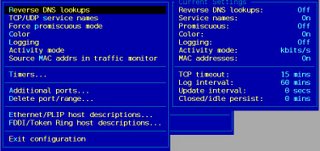
Fig: iptraf Configuration Menu

I found this network monitoring software really useful and an eye opener at the same time. For instance, I have disabled almost all the services on my machine. But I found that within just 15 minutes of getting online, IPTraf logged at least 6 attempts at connecting to my machine via SSH. Of course they could have been the result of a probe by someone using nmap to see which all ports were open on my machine. So much for obscurity while on the net.

Also this easy to use software has additional options such as enabling reverse DNS lookup in the options menu in which case, the logs will contain the DNS name instead of the IP address where ever possible and the service name instead of the port number. For example, when some traffic is generated when I connect to the yahoo.com website from my web browser, iptraf will show it as yahoo.com:www which denotes that I am connecting to the port 80 of yahoo website. It will also give a count of the number of packets transferred to and from the yahoo web server to my machine all in real time.

Same is the case with when someone tries to probe ones machine. Each and every IP packet is intercepted, the IP information of each packet decoded and the result displayed in real time. There is option to save the logs to a file which by default resides in the /var/log/iptraf directory. Even though I found it most useful for monitoring my ethernet traffic, that is not all that this nifty tool monitors. It can additionally monitor ppp, loopback, SLIP, FDDI, and ISDN interfaces.
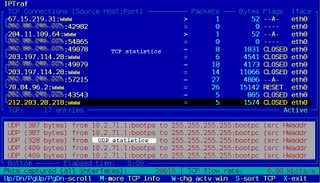
Fig: Iptraf monitoring the eth0 device on my machine

Some of the information of the intercepted packets that is decoded by iptraf are as follows:
  • Source address and port
  • Destination address and port
  • Packet count
  • Byte count
  • Packet size
  • Window count and
  • Flag status
I would like to dwell a bit on the flag status shown by iptraf. Each TCP packet that is intercepted is associated one or more flags which convey some information like which side had initiated the connection, when the connection is closed and so on. The flags are as follows :
  • S - A SYN (or synchronisation) is taking place in preparation for connection establishment. If only an S--- is present, then the source is trying to establish a connection. But if there is an S-A- then this is an acknowledgement of a previous connection request.
  • A - Acknowledgement of a previously received packet
  • P - A request to push all the data to the top of the receiving queue.
  • U - The packet contains urgent data
  • RESET - The source machine indicated in this direction reset the entire connection.
  • DONE - The connection is done sending data in this direction and has sent a FIN (finished) packet but has not yet been acknowledged by the other host.
  • CLOSED - The FIN has been acknowledged by the other host.
  • - - A dash indicates the flag is not set.
So if I see any unusual SYN activity (S---) , then I can fairy assume that my machine is under a SYN attack.

IPTraf can display a statistical breakdown of the network packets sorted by the packet size or according to the TCP/UDP port which gives a fair idea of the network traffic to and from ones machine.
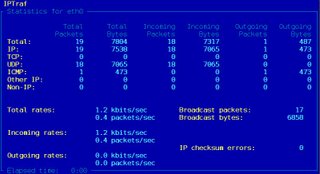
Fig: Statistical breakdown of network packets

Iptraf also supports a rich set of command line options which makes it ideal for use from within a script. True, you have an even powerful network monitor in ethereal but in my opinion, iptraf provides a right balance of functionality and simplicity which makes it an ideal tool for home users who want to monitor their network.


Copyright © Sun solaris admin